How To Add Effects to Your Iphone Photos


How To Add Effects to Your Iphone Photos


Read more:
How To Check Flight Status on Iphone
How To Use your Iphone Keyboard as a Trackpad
How To Do Not Disturb While Driving on Iphone
How To Edit Iphone Screenshots
How To One-Handed Iphone Keyboard
How To Create Iphone Shortcuts
How To Create a Iphone Custom Memoji
How To Stop Iphone Apps from Asking for Feedback
How To Take More Level Better Framed Iphone Photos
How To Extend Iphone Battery Life Easily
How To Prolong Your Iphone Battery

How To Enable Iphone Dark Mode

iOS 12 adds some Snapchat-esque photo editing features you can use right within the messaging app. You can add shapes, stickers, some text, or a filter to your selfies or photos immediately after taking them so you can quickly send them to your friends and get back on with your day.

  • Open the Messages App
  • Tap the Camera icon on the bottom left
  • Take a photo or a selfie
  • Tap Effects
  • Tap Shapes, Text, or Filters
  • Drag the objects on your photo
  • Press the send button to send the edited image


How To Create a Iphone Custom Memoji

How To Create a Iphone Custom Memoji


You’re probably already familiar with Animoji, but now you can create your own custom animated avatars called Memoji - that looks just like you. Memoji are a silly but personable and fun new way to communicate with your friends and family. Here’s how you can create and customize one of your own:

  • Open your messages app
  • Tap the animoji icon with the monkey on it
  • Swipe right to the plus sign and tap New Memoji
  • Choose your skin color
  • Choose your freckle level
  • Choose your hairstyle
  • Choose your head shape, age, and chin
  • Choose your eye shape, eye color, and eyelashes
  • Choose your eyebrows, eyebrow color, and eyebrow shape
  • Choose your nose, lip color, and lip shape
  • Choose your ears, earrings
  • Choose your facial hair and its color
  • Choose your eyewear and its color
  • Choose your hat and its color

Read more:
How To Check Flight Status on Iphone
How To Use your Iphone Keyboard as a Trackpad
How To Do Not Disturb While Driving on Iphone
How To Edit Iphone Screenshots
How To One-Handed Iphone Keyboard
How To Create Iphone Shortcuts
How To Add Effects to Your Iphone Photos
How To Stop Iphone Apps from Asking for Feedback
How To Take More Level Better Framed Iphone Photos
How To Extend Iphone Battery Life Easily
How To Prolong Your Iphone Battery

How To Enable Iphone Dark Mode

How To Stop Iphone Apps from Asking for Feedback

How To Stop Iphone Apps from Asking for Feedback


As much as feedback and reviews are important for App developers, it can be extremely annoying when you are interrupted by a popup asking for you to rate the app or leave feedback. Good news is that there is now a setting to put an end to the constant pestering!

  • Open your Settings app
  • Tap iTunes & App Store
  • Toggle In-App Ratings & Reviews to "Off"

Read more:
How To Check Flight Status on Iphone
How To Use your Iphone Keyboard as a Trackpad
How To Do Not Disturb While Driving on Iphone
How To Edit Iphone Screenshots
How To One-Handed Iphone Keyboard
How To Create Iphone Shortcuts
How To Add Effects to Your Iphone Photos
How To Create a Iphone Custom Memoji
How To Take More Level Better Framed Iphone Photos
How To Extend Iphone Battery Life Easily
How To Prolong Your Iphone Battery

How To Enable Iphone Dark Mode


How To Take More Level Better Framed Iphone Photos


How To Take More Level Better Framed Iphone Photos

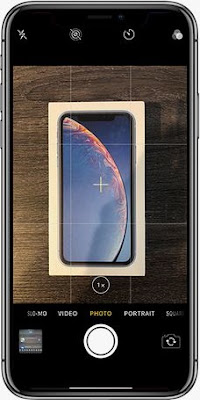
There’s a hidden camera level deep in the iPhone's settings that’ll come in handy for when you’re taking overhead shots of your stuff. To turn the feature on go to:

  • Settings
  • Scroll down some
  • Tap "Camera"
  • Enable the Grid

When you hold your phone over something to take a photo, two crosshairs will appear — a white one and a yellow one. When they line up, your photo is level!

Read more:
How To Check Flight Status on Iphone
How To Use your Iphone Keyboard as a Trackpad
How To Do Not Disturb While Driving on Iphone
How To Edit Iphone Screenshots
How To One-Handed Iphone Keyboard
How To Create Iphone Shortcuts
How To Add Effects to Your Iphone Photos
How To Create a Iphone Custom Memoji
How To Stop Iphone Apps from Asking for Feedback
How To Extend Iphone Battery Life Easily
How To Prolong Your Iphone Battery

How To Enable Iphone Dark Mode


How To Extend Iphone Battery Life Easily

How To Extend Iphone Battery Life Easily


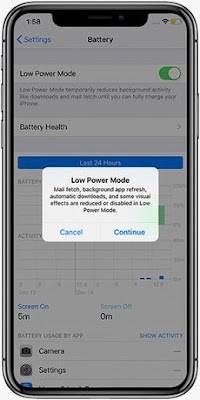
There's a setting on your iPhone called "Low Power Mode" that you may not know about. It reduces power consumption by turning off a number of battery draining features like dimming the screen faster, retrieving email less frequently, and turning off background app refresh. Here’s how you can turn it on so you can get more battery life:

  • Open the Settings app
  • Tap "Battery"
  • Enable Low Power Mode

Read more:
How To Check Flight Status on Iphone
How To Use your Iphone Keyboard as a Trackpad
How To Do Not Disturb While Driving on Iphone
How To Edit Iphone Screenshots
How To One-Handed Iphone Keyboard
How To Create Iphone Shortcuts
How To Add Effects to Your Iphone Photos
How To Create a Iphone Custom Memoji
How To Stop Iphone Apps from Asking for Feedback
How To Take More Level Better Framed Iphone Photos
How To Prolong Your Iphone Battery

How To Enable Iphone Dark Mode

How To Prolong Your Iphone Battery


How To Prolong Your Iphone Battery

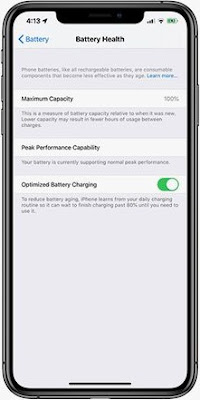
Apple has added a new option to its Battery Health feature called "Optimized Battery Charging," which is designed to extend the total battery life of a device running iOS 13. Apple says the feature slows the rate of battery aging by reducing the time your iPhone spends fully charged. The tool uses machine learning to understand your daily charging routine, so it can wait to finish charging past 80% until you need to use your phone. That way if you charge your phone at night, it won’t hold a 100% charge for several hours, which degrades your battery.

  • Tap Settings
  • Scroll down
  • Tap Battery
  • Tap Battery Health
  • Toggle the switch to the On position.

Read more:
How To Check Flight Status on Iphone
How To Use your Iphone Keyboard as a Trackpad
How To Do Not Disturb While Driving on Iphone
How To Edit Iphone Screenshots
How To One-Handed Iphone Keyboard
How To Create Iphone Shortcuts
How To Add Effects to Your Iphone Photos
How To Create a Iphone Custom Memoji
How To Stop Iphone Apps from Asking for Feedback
How To Take More Level Better Framed Iphone Photos
How To Extend Iphone Battery Life Easily

How To Enable Iphone Dark Mode

Billie Eilish Apologizes to Win the Song of the Year Grammy Awards 2020

Grammy Awards Red Carpet Fashion  -  Billie Eilish


Young singer Billie Eilish won the Song of the Year category at the 62nd 2020 Grammy Awards for her single "Bad Guy".

He received the award with his brother and producer, Finneas O'Connell.

"So many other songs that deserve this award. I'm sorry," Eilish said opening his remarks, as reported by The Hollywood Reporter, Monday (1/27/2020).

Eilish claimed he had never imagined this in his life and was grateful for the first Grammy award.

After that, he also introduced his brother whom he called a friend.

"I feel good about joking and never take things like this seriously, but I really want to thank you. I feel very honored to be among all of you," Eilish said.

He then invited his brother to speak.

"This is really a big problem. I never thought we would win this," O'Connell said.

O'Connell said, he was with his brother so far often making songs together in the bedroom.

Until now, they still do the same thing.

"(The award) is for all the children who make music in their rooms today. You will get one of them," O'Connell said.

Eilish defeated Lady Gaga with "Always Remember Us This Way", Ask Tucker "Bring My Flowers Now", HER with "Hard Place", Taylor Swift with "Lover", Lana del Rey "Norman F *** ing Rockwell", Lewis Capaldi "Someone You Loved", and Lizzo "Truth Hurts"

The 18-year-old singer received the second most nominations along with Lil Nas X with six nominations.

Eilish is the youngest winner in this category since Lorde, who was only 17 when he won an award in 2013 for writing with "Royals".

The 62nd Grammy Awards 2020 event was held at the Staples Center, Los Angeles, Sunday (1/26/2020) local time.


Entertain yourself with cellular phone ring tones


To sustain the profitable state of your business in this fastpaced cellular phone industry, creating useful and functional cellular phone may be necessary. Various accessories for your cellular phone may also add to your chances of being ahead of the competition. The competition does not stop from designing functional cellular phones and accessories, they also create the need for ring tones and wallpapers. Cellular phone ring tones and cellular phone wallpapers add to the growing number of dress up paraphernalia for your cellular phone. Ring tones and wallpapers give personality to your cellular phone, thus you can flaunt his high-tech gadget to the world.

Because of the entertaining effect and beauty of cellular phone ring tones and cellular phone wallpapers, computer experts and cellular phone manufacturers are quick to design software and gadgets that will help in the easy installation of ring tones and wallpapers. This gave birth to a ring tone converter. The cellular phone ring tone converter will help to transfer ring tones from one cellular phone to another. This ring tone converters also help in downloading ring tones from computers and internet sites. These are also cellular phones, which supports manual input of cellular phone ring tones. Ring tones transfer via SMS is also possible. A cellular phone ring tone converter may also function when transferring a ring tone from other cellular phone brands. Although there are cellular phone models that does not support ring tone converters, it is however possible that the cellular phone has a built in cellular phone ring tone which will help create a dignified personality for your cellular phone.

Availability of ring tone converters, which does not require cables and infrared connections, proves to be easy to use if you need to download cellular phone ring tones. If you are serious in personalizing your cellular phone ring tone, you may try to find a cellular phone with fully functional ring tone composer. Then you may now create and edit cellular phone ring tones when you have this composer in your cellular phone. Editing ring tones and converting your favorite song into a cellular phone ring tone is easy with the modern ring tone converter. The ring tone composer of your cellular phone may also do this job as well as your converter.

Additionally there are available websites where you can acquire cellular phone ring tones. There are those websites that use SMS format from where you can download ring tones using a converter, but there are those that merely require the downloading capacity of your phone and nothing more. You will now have a cellular phone ring tones that may provide the personality you want.

Knowing that there are cellular phone ring tone converter and built-in composers, it may further enhance your cellular phone ring tone if you know the software that is best used with your converter. This information will now help you create that personality you want for your high-tech gadget. 

Having all these information, you may go to various internet sites and look for the best monophonic or polyphonic ring tone, which you may feel is a suited ring tone for your cellular phone. Having a cellular phone ring tone and cellular phone wallpaper is good; however, you may first check your phone before you even think of ring tones, because editing and downloading ring tones may require a support from your own cellular phone model. Do not despair however if your phone do not support editing and downloading cellular phone ring tones because manufacturers have built-in ring tones, although it may not be the music you want but just the same you have the ring tone.

Cell phone plans, choose the best deal


Cell phone has evolved to be one of the most important part of life. Most businesses require their officers to have a cell phone. Even individuals need cell phones in going about their daily lives. This is why acquiring this important gadget require intelligence to avoid inappropriate expense. Finding the most reasonable cell phone plan is one requirement in choosing cell phones intelligently. Because of the very large number of network services in this country, it may help you to research and assess their offers before deciding on a cell phone plan.

Before you decide to buy a cell phone, you may want to decide first whether you want a prepaid cell phone service or a traditional cell phone plan. If you decide on a prepaid cell phone service, then no problem, no credit check, you just need to pay outright and immediately you have your phone. Some cell phone companies even offer free cellular phone unit when you acquire a prepaid cell phone service from them. However, when you want a cell phone plan, you may need to choose from a by minute charging or by the second charging. Both charging process have positive and negative points. You need to assess your usage frequency and requirements before you decide on a cell phone plan. You may research on the performance like if they have enough towers to reach you wherever you are. There are different cell phone plans for family and national use. There are also cell phone plans for regional use. All of these have their own benefits although there are also their disadvantages. For prepaid cell phone plans, there are cell phone units that may not have the capability for this connection.

Other cell phone plans like family plans, this is advantageous for family use and small businesses. There is free access for emergencies. In addition, for family plans, it is cheaper to call the other cell phones included in one billing. There are also discounts for the airtime usage of family members using this cell phone plan. For national plans, this cell phone plan includes free long-distance charges. There are no roaming charges for this cell phone plan and it is another advantage. For regional use, this cell phone plan may require you to pay long-distance charges but the airtime rates may be cheaper.

Cell phone plans may be beneficial is you can acquire the once that have the benefits you need. The manner of usage is an essential requirement, if you do not need it as much and just for emergencies, prepaid cell phone plan could suit you well than traditional plans where you need to sign a contract with the service provider.

Prepaid cell phone plans are often preferred; however, for travelers the traditional plan with no roaming charges and no long-distance charges might be best.

All of this notwithstanding, in order to make full and effective use of your cell phone, you may want to set some guidelines in your usage. If you want your cell phone for your business, you may need to make sure you turn it off when you need privacy. Being available every time may not do well for you. Reserve sometime for yourself and never allow people to disturb you during this time. If your business partners know they could reach you even late at night and on weekends, they will be annoyed if you suddenly change this behavior. Having a cell phone and being available all the time may not be healthy, thus, you have to be wary not to allow people disturb you when you need to be alone with or without your cell phone.

Automating with Batch Files

http://nfelica.blogspot.com

If you're familiar with MS-DOS at all, you'll recall that it's a command-driven operating system that performs functions issued at the C:> prompt. The only way to get an MS-DOS computer to do something was to type a command at this prompt and if you can imagine, it was a rather cumbersome way to use a computer.

As an example, to load up Microsoft's simple editing program, you had to type the name of the drive that the program was on, the directory that the program was in, and then the name of the program. So if Microsoft Edit was in a directory or folder named "Process," you could start the program by typing, "C:>process\edit.com" Then, and only then would the program load up for use.

This is a small command, but just imagine if you had a program that was deeply nested within a series of folder. You could end up typing a command as wide as your computer screen or worse, long enough that the entire command would have to wrap onto the next line! Now imagine having to type these long commands every time that you wanted to start a program. Yikes!

That's one of the reasons why batch files became so popular. Batch files are small text-based documents that contain a bunch of these commands on their own lines. When executed, they would process each command without the user having to type each and every one of them.

When Windows was developed, the need for typing commands was essentially eradicated thanks to the introduction of the point-and-click (mouse) interface. But this didn't stop the batch file fever that started under MS-DOS - and in some small circles, batch files are still as popular as they were in the beginning.

Even though you may use Windows XP or Vista, batch files can save you tons of time by automatically starting multiple programs and performing different tasks at the single click of a button. They don't require any extensive programming background and they don't need to be encrypted with some weird, expensive compiler. Batch files are plain text files, and you can build one for your own personal use with Windows' Notepad.

You could make a batch file that loads up your favorite websites at once for example, or you could make a batch file that fills your desktop with the most important applications for the day. To do so only requires a little knowledge about the locations of these applications.

Let's say that every day we need to load up the Yahoo web browser, Microsoft Word, and then the calculator that comes with Windows. Instead of doing this by hand, we could write a batch file to do it for us.

First, we'd load up Notepad and type in the following:

START "http://www.yahoo.com"
START "c:/program files/microsoft office/office/winword.exe"
START "c:/windows/calc.exe"

We would then save this data into a file named, "mytasks.bat" onto the Desktop for easy access. Each time we double-clicked on this file, the Yahoo website would load up, Microsoft Word would start, and the simple calculator would pop up.

Since we want these programs to load every day, we could create a shortcut to this file and then place the shortcut inside our computer's Start Up folder. That way, these three programs would load every time we turn on the computer. If you wanted these programs to start minimized, you could type the following into a batch file instead:

START http://www.yahoo.com /m
START "c:/program files/microsoft office/office/winword.exe" /m
START "c:/windows/calc.exe" /m

This will run all three programs as before, however the "/m" parameter will minimize them so that they don't clutter up the desktop.

Other people have found much more creative and effective ways to use batch files, but the important thing is that you know they're a resource you can use to save a few seconds or minutes in performing important tasks. We've come a long way from MS-DOS, but it's still a valuable source of automation that anyone can use with no programming knowledge at all.