How to Turn Off Security Check Facebook


How to Turn Off Security Check Facebook


Facebook has implemented a variety of different security features for its users, including something called a security check. In the context of Facebook, a security check is a pop-up Captcha image (random words or letters) that appears when you attempt to add new friends or communicate with friends who aren't on your Friends list. After awhile, the security check can become a nuisance, especially if you use Facebook frequently for your business, but getting rid of it is a simple process that takes only a few minutes.

  • Log in to your Facebook account
  • Complete a task that causes the Captcha to appear, such as sending a friend request to a new friend.
  • Click the "Verify your account" link that appears in the Captcha box. This will open another pop-up window. This window will ask you to confirm your account by mobile phone number.
  • Select your country from the "Country Code" pull-down menu. Enter your mobile phone number in the "Phone Number" field and then click "Confirm." A code will be instantly sent to your mobile phone and the pop-up window will navigate to the "Confirm" window.
  • Enter the code you received via text message in the "Confirm" window's "Code" field. Click the "Confirm" button to save your changes. Your Facebook account has now been confirmed and the security check will be turned off.


How To Enable Iphone Dark Mode

How To Enable Iphone Dark Mode


One of the most anticipated features of iOS 13 is Dark Mode. If you’re unfamiliar, the setting essentially inverts the colors on your screen, so all the white background interfaces turn black. This lets your eyes rest easier at nighttime. It also just looks really cool. Here’s how you turn it on!

  • Just say, "Hey, Siri, turn on Dark Mode"
  • If you prefer not to use Siri, you can open Control Center by swiping down diagonally on the top-right corner of your iPhone’s display
  • Press and hold the Brightness indicator (it looks like a sun)
  • Tap Appearance Light at the bottom left
  • That's it!


Read more:
How To Check Flight Status on Iphone
How To Use your Iphone Keyboard as a Trackpad
How To Do Not Disturb While Driving on Iphone
How To Edit Iphone Screenshots
How To One-Handed Iphone Keyboard
How To Create Iphone Shortcuts
How To Add Effects to Your Iphone Photos
How To Create a Iphone Custom Memoji
How To Stop Iphone Apps from Asking for Feedback
How To Take More Level Better Framed Iphone Photos
How To Extend Iphone Battery Life Easily
How To Prolong Your Iphone Battery


How To Check Flight Status on Iphone


How To Check Flight Status on Iphone


If you have to pick someone up from the airport, you'll dig this. Safari makes it much easier to track flights, so you know what time your friend will land and if their flight experiences any delays. If you're the one flying, it comes in handy for figuring out what gate you need to go to and informing you of the total duration of your flight (that way you know how many episodes of Twin Peaks you need to download, of course). Here's how to do it:

  • Open Safari
  • In the address bar, type the airline's name and the flight number
  • Under the Flight tab, select the flight by tapping it
  • From there you can see a map of where the flight is and check out the latest information on the flight

Read more:
How To Use your Iphone Keyboard as a Trackpad
How To Do Not Disturb While Driving on Iphone
How To Edit Iphone Screenshots
How To One-Handed Iphone Keyboard
How To Create Iphone Shortcuts
How To Add Effects to Your Iphone Photos
How To Create a Iphone Custom Memoji
How To Stop Iphone Apps from Asking for Feedback
How To Take More Level Better Framed Iphone Photos
How To Extend Iphone Battery Life Easily
How To Prolong Your Iphone Battery

How To Enable Iphone Dark Mode


How To Use your Iphone Keyboard as a Trackpad


How To Use your Iphone Keyboard as a Trackpad


You may not have known that your iPhone's keyboard can double as a trackpad. This way you can move your cursor much more accurately instead of tapping and holding on the screen to bring up the magnifying glass. To use this feature, you need an iPhone 6S or later.

  • While you are typing a message, firmly press and hold anywhere on the keyboard to activate the trackpad
  • Drag your finger around to move your cursor through the text
  • When the cursor is where you want it to be, just let go

If you have an older iPhone that doesn't have 3D touch, we recommend you install the third-party keyboard, Gboard, which lets you use the spacebar as a mini trackpad to swipe through text.


Read more:
How To Check Flight Status on Iphone
How To Do Not Disturb While Driving on Iphone
How To Edit Iphone Screenshots
How To One-Handed Iphone Keyboard
How To Create Iphone Shortcuts
How To Add Effects to Your Iphone Photos
How To Create a Iphone Custom Memoji
How To Stop Iphone Apps from Asking for Feedback
How To Take More Level Better Framed Iphone Photos
How To Extend Iphone Battery Life Easily
How To Prolong Your Iphone Battery

How To Enable Iphone Dark Mode

tips:

Rather than tapping the 123 button at the bottom left of the keyboard, tapping the character you want, and then tapping the 123 button again, just hold the 123 button, slide your thumb to the character you want to use, then lift your thumb up off your screen. The character will be input, and your keyboard will return to normal without taking the extra step of tapping the 123 button again.


How To Do Not Disturb While Driving on Iphone


How To Do Not Disturb While Driving on Iphone


Apple hopes to prevent accidents and cut down on distractions while driving with this new feature. It blocks incoming calls, texts, and notifications when your iPhone detects acceleration or connects to your vehicle's Bluetooth. When someone tries to get a hold of you, your iPhone will send an auto-reply message to let the person know you're driving. The feature can be disabled for passengers, and if there's an emergency and someone needs to reach you, they can still contact you if they respond to the text message with the word "urgent." To turn on the settings, just do the following:

  • Tap Settings
  • Tap Do Not Disturb
  • Tap Automatically if you want the setting to be enabled when detecting movement
  • Tap While Connected to Car Bluetooth if your car has Bluetooth
  • Tap Manually if you don't want the setting to enable automatically, and then add Do Not Disturb While Driving to Control Center (see previous tip above)
  • Tap Auto-Reply to customize and change the message, if you wish
  • Tap Auto-Reply To if you want to change who gets sent the auto-reply message. You can pick All Contacts, Favorites, Recent Contacts, or No-One

Read more:
How To Check Flight Status on Iphone
How To Use your Iphone Keyboard as a Trackpad
How To Edit Iphone Screenshots
How To One-Handed Iphone Keyboard
How To Create Iphone Shortcuts
How To Add Effects to Your Iphone Photos
How To Create a Iphone Custom Memoji
How To Stop Iphone Apps from Asking for Feedback
How To Take More Level Better Framed Iphone Photos
How To Extend Iphone Battery Life Easily
How To Prolong Your Iphone Battery

How To Enable Iphone Dark Mode


How To Edit Iphone Screenshots

How To Edit Iphone Screenshots


Read more:
How To Check Flight Status on Iphone
How To Use your Iphone Keyboard as a Trackpad
How To Do Not Disturb While Driving on Iphone
How To One-Handed Iphone Keyboard
How To Create Iphone Shortcuts
How To Add Effects to Your Iphone Photos
How To Create a Iphone Custom Memoji
How To Stop Iphone Apps from Asking for Feedback
How To Take More Level Better Framed Iphone Photos
How To Extend Iphone Battery Life Easily
How To Prolong Your Iphone Battery

How To Enable Iphone Dark Mode
Did you know your iPhone lets you edit your screenshots before saving or sharing them? Here's how to get it:

  • Take a screenshot by pressing the power button and the home button at the same time
  • Quickly tap the thumbnail of the screenshot that appears at the bottom left of your screen
  • From there you can crop the screenshot, doodle on it, highlight parts, etc.
  • When you're finished editing, tap Done in the top left, or tap the share icon in the top right to send it to someone


How To One-Handed Iphone Keyboard


How To One-Handed Iphone Keyboard

Smartphone displays keep getting bigger, which makes typing difficult, especially with one hand. Your iPhone actually has a feature that shifts the keyboard over a smidgen so you can use one hand to type and the other to do whatever else it is that you need to do. Here's how to enable the feature:

  • Hold down the emoji or globe icon on the bottom left of the keyboard
  • Select the left- or right-handed keyboard icon
  • Tap the arrow in the blank space that's created by the keyboard shift to go back to normal

Read more:
How To Check Flight Status on Iphone
How To Use your Iphone Keyboard as a Trackpad
How To Do Not Disturb While Driving on Iphone
How To Edit Iphone Screenshots
How To Create Iphone Shortcuts
How To Add Effects to Your Iphone Photos
How To Create a Iphone Custom Memoji
How To Stop Iphone Apps from Asking for Feedback
How To Take More Level Better Framed Iphone Photos
How To Extend Iphone Battery Life Easily
How To Prolong Your Iphone Battery

How To Enable Iphone Dark Mode

How To Create Iphone Shortcuts

How To Create Iphone Shortcuts


Besides performance and battery improvements, Shortcuts are probably the most exciting new feature to come from iOS 12. They help simplify everyday tasks and let you get things done with your apps or through Siri. For example, you could create a shortcut called “omw” (on my way) which would open your favorite navigation app, pull up directions to your house, and automatically text your significant other with your estimated travel time. Sounds cool, right? Here’s how to create or download shortcuts of your own:

  • Open the App Store
  • Search Shortcuts
  • Download the App
  • Open the App
  • Tap Get Started
  • Tap Gallery at the bottom right
  • Tap what shortcut you want to use
  • Tap Get Shortcut
  • Follow the steps to configure your new shortcut

Read more:
How To Check Flight Status on Iphone
How To Use your Iphone Keyboard as a Trackpad
How To Do Not Disturb While Driving on Iphone
How To Edit Iphone Screenshots
How To One-Handed Iphone Keyboard
How To Add Effects to Your Iphone Photos
How To Create a Iphone Custom Memoji
How To Stop Iphone Apps from Asking for Feedback
How To Take More Level Better Framed Iphone Photos
How To Extend Iphone Battery Life Easily
How To Prolong Your Iphone Battery

How To Enable Iphone Dark Mode
We also recommend checking out shortcuts that were shared by Apple, Lifehacker, and MacStories.


How To Add Effects to Your Iphone Photos


How To Add Effects to Your Iphone Photos


Read more:
How To Check Flight Status on Iphone
How To Use your Iphone Keyboard as a Trackpad
How To Do Not Disturb While Driving on Iphone
How To Edit Iphone Screenshots
How To One-Handed Iphone Keyboard
How To Create Iphone Shortcuts
How To Create a Iphone Custom Memoji
How To Stop Iphone Apps from Asking for Feedback
How To Take More Level Better Framed Iphone Photos
How To Extend Iphone Battery Life Easily
How To Prolong Your Iphone Battery

How To Enable Iphone Dark Mode

iOS 12 adds some Snapchat-esque photo editing features you can use right within the messaging app. You can add shapes, stickers, some text, or a filter to your selfies or photos immediately after taking them so you can quickly send them to your friends and get back on with your day.

  • Open the Messages App
  • Tap the Camera icon on the bottom left
  • Take a photo or a selfie
  • Tap Effects
  • Tap Shapes, Text, or Filters
  • Drag the objects on your photo
  • Press the send button to send the edited image


How To Create a Iphone Custom Memoji

How To Create a Iphone Custom Memoji


You’re probably already familiar with Animoji, but now you can create your own custom animated avatars called Memoji - that looks just like you. Memoji are a silly but personable and fun new way to communicate with your friends and family. Here’s how you can create and customize one of your own:

  • Open your messages app
  • Tap the animoji icon with the monkey on it
  • Swipe right to the plus sign and tap New Memoji
  • Choose your skin color
  • Choose your freckle level
  • Choose your hairstyle
  • Choose your head shape, age, and chin
  • Choose your eye shape, eye color, and eyelashes
  • Choose your eyebrows, eyebrow color, and eyebrow shape
  • Choose your nose, lip color, and lip shape
  • Choose your ears, earrings
  • Choose your facial hair and its color
  • Choose your eyewear and its color
  • Choose your hat and its color

Read more:
How To Check Flight Status on Iphone
How To Use your Iphone Keyboard as a Trackpad
How To Do Not Disturb While Driving on Iphone
How To Edit Iphone Screenshots
How To One-Handed Iphone Keyboard
How To Create Iphone Shortcuts
How To Add Effects to Your Iphone Photos
How To Stop Iphone Apps from Asking for Feedback
How To Take More Level Better Framed Iphone Photos
How To Extend Iphone Battery Life Easily
How To Prolong Your Iphone Battery

How To Enable Iphone Dark Mode

How To Stop Iphone Apps from Asking for Feedback

How To Stop Iphone Apps from Asking for Feedback


As much as feedback and reviews are important for App developers, it can be extremely annoying when you are interrupted by a popup asking for you to rate the app or leave feedback. Good news is that there is now a setting to put an end to the constant pestering!

  • Open your Settings app
  • Tap iTunes & App Store
  • Toggle In-App Ratings & Reviews to "Off"

Read more:
How To Check Flight Status on Iphone
How To Use your Iphone Keyboard as a Trackpad
How To Do Not Disturb While Driving on Iphone
How To Edit Iphone Screenshots
How To One-Handed Iphone Keyboard
How To Create Iphone Shortcuts
How To Add Effects to Your Iphone Photos
How To Create a Iphone Custom Memoji
How To Take More Level Better Framed Iphone Photos
How To Extend Iphone Battery Life Easily
How To Prolong Your Iphone Battery

How To Enable Iphone Dark Mode


How To Take More Level Better Framed Iphone Photos


How To Take More Level Better Framed Iphone Photos

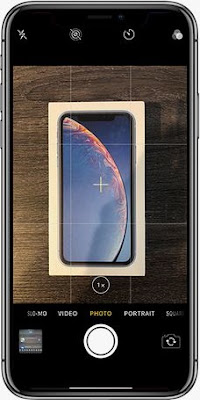
There’s a hidden camera level deep in the iPhone's settings that’ll come in handy for when you’re taking overhead shots of your stuff. To turn the feature on go to:

  • Settings
  • Scroll down some
  • Tap "Camera"
  • Enable the Grid

When you hold your phone over something to take a photo, two crosshairs will appear — a white one and a yellow one. When they line up, your photo is level!

Read more:
How To Check Flight Status on Iphone
How To Use your Iphone Keyboard as a Trackpad
How To Do Not Disturb While Driving on Iphone
How To Edit Iphone Screenshots
How To One-Handed Iphone Keyboard
How To Create Iphone Shortcuts
How To Add Effects to Your Iphone Photos
How To Create a Iphone Custom Memoji
How To Stop Iphone Apps from Asking for Feedback
How To Extend Iphone Battery Life Easily
How To Prolong Your Iphone Battery

How To Enable Iphone Dark Mode


How To Extend Iphone Battery Life Easily

How To Extend Iphone Battery Life Easily


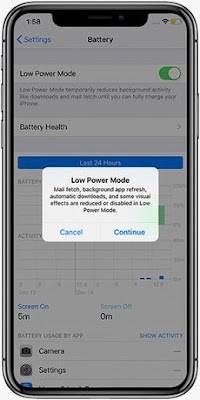
There's a setting on your iPhone called "Low Power Mode" that you may not know about. It reduces power consumption by turning off a number of battery draining features like dimming the screen faster, retrieving email less frequently, and turning off background app refresh. Here’s how you can turn it on so you can get more battery life:

  • Open the Settings app
  • Tap "Battery"
  • Enable Low Power Mode

Read more:
How To Check Flight Status on Iphone
How To Use your Iphone Keyboard as a Trackpad
How To Do Not Disturb While Driving on Iphone
How To Edit Iphone Screenshots
How To One-Handed Iphone Keyboard
How To Create Iphone Shortcuts
How To Add Effects to Your Iphone Photos
How To Create a Iphone Custom Memoji
How To Stop Iphone Apps from Asking for Feedback
How To Take More Level Better Framed Iphone Photos
How To Prolong Your Iphone Battery

How To Enable Iphone Dark Mode

How To Prolong Your Iphone Battery


How To Prolong Your Iphone Battery

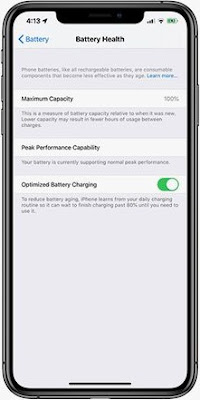
Apple has added a new option to its Battery Health feature called "Optimized Battery Charging," which is designed to extend the total battery life of a device running iOS 13. Apple says the feature slows the rate of battery aging by reducing the time your iPhone spends fully charged. The tool uses machine learning to understand your daily charging routine, so it can wait to finish charging past 80% until you need to use your phone. That way if you charge your phone at night, it won’t hold a 100% charge for several hours, which degrades your battery.

  • Tap Settings
  • Scroll down
  • Tap Battery
  • Tap Battery Health
  • Toggle the switch to the On position.

Read more:
How To Check Flight Status on Iphone
How To Use your Iphone Keyboard as a Trackpad
How To Do Not Disturb While Driving on Iphone
How To Edit Iphone Screenshots
How To One-Handed Iphone Keyboard
How To Create Iphone Shortcuts
How To Add Effects to Your Iphone Photos
How To Create a Iphone Custom Memoji
How To Stop Iphone Apps from Asking for Feedback
How To Take More Level Better Framed Iphone Photos
How To Extend Iphone Battery Life Easily

How To Enable Iphone Dark Mode

Protecting Your Children


http://nfelica.blogspot.com

It's an unfortunate fact of reality, but children are the most victimized computer users on the Internet today. The good news is that there are some practical steps you can take to protect your children from sexual predators, hackers, and other seedy individuals who want to cause harm. This article will describe a few of them.

The first step in protecting your children at the computer is to prevent their access to  passwords. This will keep them from sharing passwords with others and inadvertently enabling hacking into your system. If you think about it, there's no reason why a five, seven, or even twelve year old needs to know the passwords to sensitive areas on the computer unless you've given them permission! In fact, children don't need to know the password used to access the Internet either. It may be a hassle to type it in each time they want to get online, but it's better to know the times that they connect than to have them sneak online without your permission and knowledge of their activities.

The second step towards protecting your children online is using the computer together. Siting next to your child while he or she peruses the Internet, you can guide him or her to make safe and intelligent decisions. You can approve websites and bookmark them together. You can monitor the conversations your children have with their friends and teach them appropriate online behavior at the same time. You can make recommendations and create a private time for quality time as well.

The third step involves blocking access to inappropriate areas altogether. You and your children may not always agree about what's appropriate, but as a guardian, you're in control and you're ultimately responsible for their safety. Take the time to investigate software tools that put you in control and allow you to block access to certain websites. If you use an online service like AOL (America Online), you can use its internal Parental Control settings to block access to various chatrooms and websites. You could even block instant messaging and email from anyone who isn't a fellow AOL user.

Other tools available online operate similar to the way that AOL's Parental Control settings work, however no collection of tools could replace the reinforcement of mom and dad. Never let your children speak with strangers and never leave them alone at the computer unattended. Children just don't have the experience that adults have and they don't have the skills required to handle inappropriate conversations, emails, or images found online.

NOTE: Some of these tools include kid-specific web browsers that will visit pre-approved websites. Others include browser plug-ins that won't allow access to online areas that contain forbidden keywords.

Another step requires teaching your children to never ever volunteer personal information. Under no circumstances, should children give their personal names, home addresses, phone numbers, or school information to anyone over the Internet regardless of the situation.  In the even this information is required to enter a contest of some sort, be sure that you're the one who makes the decision to supply it and that you're the one who does it.

Performing all of these steps won't be easy. However you can help minimize resistance to your monitoring efforts by explaining why you're taking these precautions. Smaller children will probably enjoy the time you spend together at the computer, but older children and pre-teens may resent it. To help build a case for your concern, you might want to show your older children a few news stories that exemplify the dangers that unsupervised children are exposed to. The newspaper is unfortunately full of examples but with your help, we can reduce them world-wide.

Screenshot on the Samsung Galaxy S5


Want to take a screenshot on your Galaxy S5 or Galaxy S5 Active? It's just a couple buttons - or a swipe - away

This Galaxy S5 trick is an old one, but a good one. And it's one you'll certainly want to use. For those of you who are coming to the Samsung Galaxy S5 from another Samsung Galaxy phone, you'll be right at home here. Taking a screenshot on the Galaxy S5 is exactly the same.

But for those of you who are coming over from an iPhone or another Android phone, it's a slightly different procedure. And Samsung's got one really cool trick up its sleeve. (Note that these methods also work on the more rugged Galaxy S5 Active.)

Method 1


Probably the easiest way to take a screenshot on the Galaxy S5 is to just use the physical button combination. And it's actually the same method as with the iPhone — it's just that the buttons are in different locations. Here's how to do it:

  1. Get the screen that you want to capture ready to go.
  2. Simultaneously press the power button and the home button. It can be a bit of a stretch on these larger phones, but it works. You'll hear the camera shutter sound fire off, and that's how you know you're good to go.
  3. You'll now be able to see the screenshot in the Gallery app, or in Samsung's built-in "My Files" file browser.
  4. If you need to find the screenshots from a command line or through the Android File Transfer tool, they'll be in /pictures/screenshots.

Method 2


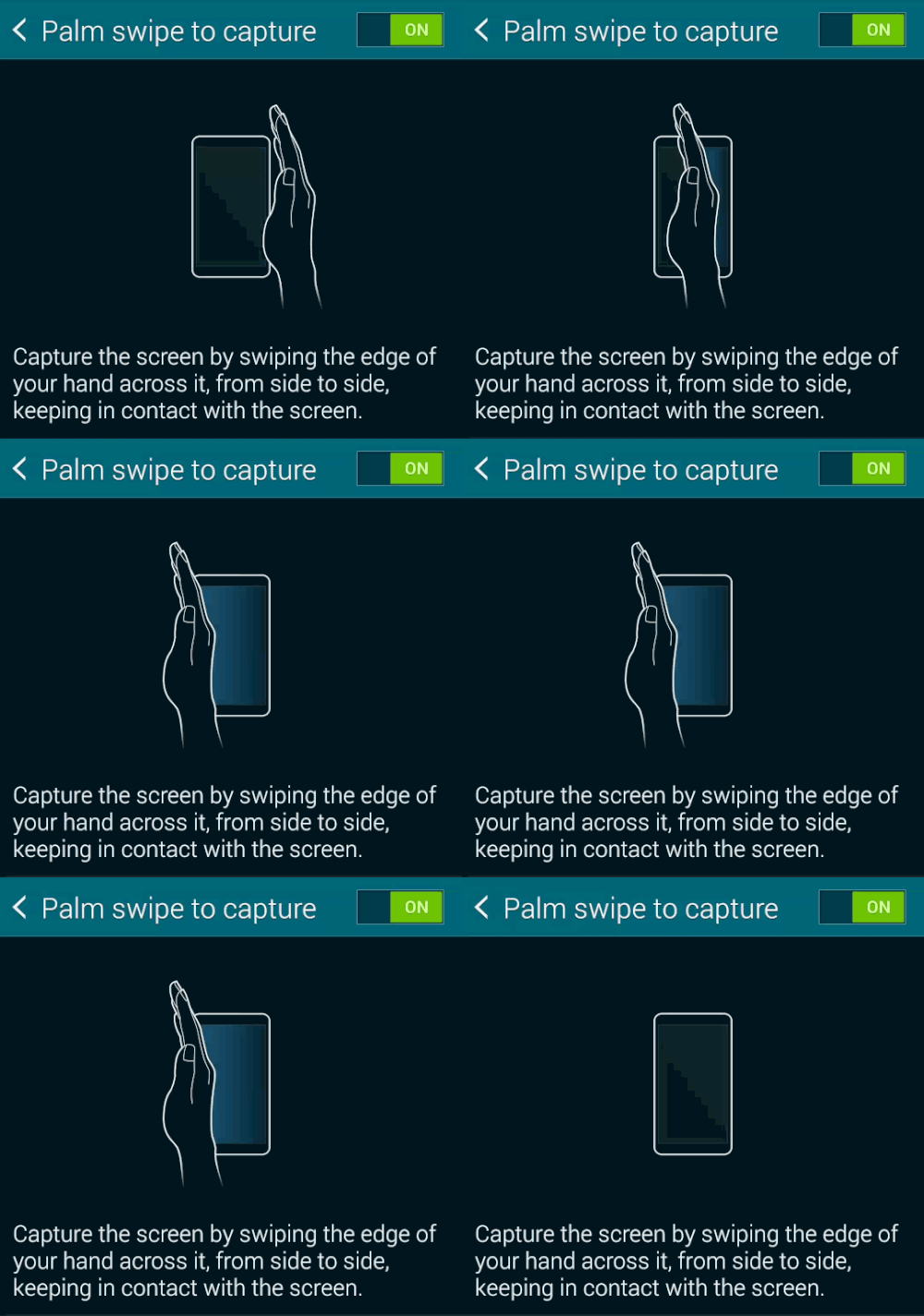
Now this one's cool. And it's not new to Samsung, but it's still pretty neat, and it's enabled by default. Tilt your hand up onto its side, with your pinky facing down. Now swipe it across the screen, and make sure you actually touch the screen.

Boom. Galaxy S5 screenshot. How cool is that?

If you don't want to have this feature enabled or find that you're taking screen shots accidentally, here's how to turn it off:

  1. Go into the settings menu.
  2. Scroll down to "Motion" and choose "Motions and gestures."
  3. Tap "Palm swipe to capture."
  4. Hit the toggle button from on to off.


Enable Samsung Galaxy S5 developer options


Developer mode is easy to get to, you just have to remember to enable it

As has been the case since Android 4.2, the developer options have been hidden by default from your Android settings menu. This is a good thing, actually, as it'll keep curious minds from potentially breaking things. It also helps keep your phone more secure.

But there are plenty of reasons why you would want to enable developer options on your Galaxy S5. If you want to plug in to a computer and do any sort of command-line work, this is going to be your first stop. Or if you need some extra debugging options as a programmer. Or, maybe you are that sort of curious creature who just wants to see how things work. Nothing wrong with any of that.

But, of course, you're going to first have to turn developer mode on for your Galaxy S5. Here's how to do it.

Go to the settings menu on your GS5.
Scroll down to the "System section and tap "About Device."
Now scroll down to "Build number."
Tap the "Build number" section seven times. (You'll see a warning that you're about to unlock developer options.)
Now back out to the main settings menu, and you'll see "Developer options" listed.
From there, you can enable any number of Galaxy S5 developer options at one time. We usually start with USB debugging. If you ever want to turn off developer options wholesale, there's a toggle at the top of the section. This won't hide the options from prying eyes, however. But it'll keep you from accidentally enabling any of the options.


How to take a voice note on the Samsung Galaxy S4


Voice recording on the Samsung Galaxy S4 is really simple and useful.

Taking a voice note on your Samsung Galaxy S4 is really easy. The built in Voice Recorder, though simple, packs all of the options and tools you need for capturing audio.

  • Open the Voice Recorder app.
  • Tap the record button at the bottom in the middle.
  • Tap pause to delay recording, then the record button again to continue recording to the same file.
  • Tap the square stop button to finish recording.
  • Tap the x button to delete the current recording. (Recording controls are also available via the notification tray; swipe down from the top of the screen from anywhere outside the app to pause, stop, or cancel recording, as well as go back to the app.)

Completed audio files are stored in an .m4a format under /storage/emulated/0/Sounds in the file system, though you can access them directly from the Voice Recorder app to share wherever you like. Just tap the arrow in the bottom-right to see saved voice notes, and tap each file name to listen (at increased or reduced speed if you like). You can also trim audio files from the playback section at the bottom of the screen. A long press on the recording name will bring up management options such as file renaming, sharing, deletion, and setting as ringtone. There are a bunch of helpful settings you can tweak too. Tap the menu key and hit Settings. From there you can toggle GPS-based filenames and change recording quality and volume. Alternatively, you can store voice notes alongside written ones in the S Notes application.

How to Remove Newfolder.exe Virus from your pc


How to remove Newfolder.exe virus from your pc
  • Find out all the locations of the “newfolder.exe” virus.
  • Open the task manager and end the newfolder.exe process running in background.3. Open cmd and then type “dir /a XXX” where XXX is the name of the folder where the virus is.
  • Then type “cd XXX”.
  • Delete the file by typing “del name_of_file”.
  • Then remove the whole folder by typing “rmdir /s XXX”.
  • The virus has been removed just see the task manager once again and end the newfolder.exe process running in the background (if any).
  • Restart the system and Enjoy!

Top tips for saving battery life on the Samsung Galaxy S4


 If you need your Samsung Galaxy S4 battery life at its peak, check out these tips!

Does your Samsung Galaxy S4 not have enough juice to make it through the day? Well, we've got some tips to make sure you get the very most out of that battery. Managing background apps, wireless activity, and display are all big parts of the picture. A lot of it is straight-up common sense, but it's very easy to forget to do a lot of the basics.

Turn on Power Saving mode


Power Saving mode conveniently throttles processor usage, screen brightness, and disables vibration all at once to save on battery life. Vibration is a big one; be sure to have your notifications set to mute or audible instead by using the volume keys.

  • Swipe down from the top of the home screen to bring up the notification pane.
  • Tap the icon in the top-right to see all options.
  • Tap Power saving.
Lower screen brightness and reduce timeout duration


The display on the Samsung Galaxy S4 is generally the biggest drain on battery life. Reducing the brightness of the screen can earn you some precious time, but will reduce visibility outdoors. Setting a shorter timeout duration will ensure that the screen isn’t active for any longer than it absolutely needs to be, though it may turn off too quickly for your preferences.

  • Swipe down from the top of the home screen to bring up the notification pane.
  • Drag the brightness slider near the top towards the left.
  • Tap the gear icon at the top, the My Device tab at the top, then Display.
  • Tap Screen timeout and set how long before the screen turns off on its own.
Turn off unused functions and wireless connections


It’s easy to forget that some wireless functions are continually on in the background not doing much of anything. Turn them off when not in use. Just remember that if you’re within Wi-Fi hotspot range most of the day, you’ll actually save power using it instead of cellular data.

  • Swipe down from the top of the home screen to bring up the notification pane.
  • Tap the icon in the top-right to see all options.
  • Tap NFC, Wi-Fi, Bluetooth, GPS, and Mobile Hotspot so the icons are greyed out. Other extraneous functions, such as Air view and screen mirroring can also be disabled here to save on battery.
Manage sync and auto-uploads


Sync in particular can be a major battery drain. Though turn off sync from the notification tray means certain apps won’t notify as quickly as you like, it will certainly save you some battery life. Google+ can be a key offender here, but also other cloud apps, like Dropbox, that are set to back up photos as you shoot them. Be sure to dive into your various apps and individually disable auto-uploads and sync on any that aren’t vitally important.

  • Swipe down from the top of the home screen to bring up the notification pane.
  • Tap the icon in the top-right to see all options.
  • Tap Sync so the icon is greyed out.

Disable widgets and live wallpapers


Home screen widgets and active wallpapers are notorious battery hogs since they’re basically active all the time. Give them the axe. You never really needed them anyway, right?

  • Long press on a home screen widget.
  • Drag it to the trash can at the top of the screen, and release.
  • Long press on the home screen background and tap Set wallpaper from the pop-up.
  • Tap Home screen and pick a wallpaper source other than Live wallpapers.
  • Select an image, crop appropriately, and tap Done in the top-right.
Close, disable, or uninstall unused apps


Apps can run in the background and use up precious CPU cycles when you’re not actively using them. Most of them show up in the multitasking view and can be closed safely from there. While some need to be manually closed down, it's not always advisable. Force closing and disabling background apps may cause instability, depending on how vital they are. Be sure to read up here on how your phone already does a pretty good job of handling memory management before going on a task killing spree. In any case, drilling into your system settings can at least show the most active (and power-hungry) apps on your Samsung Galaxy S4. In most instances uninstalling these apps will be better than just killing them, since they'll often restart on their own.
  • Hold down the home button to summon the multitasking view.
  • Tap the icon in the bottom-right to close all active apps.
  • Swipe down from the top of the home screen to bring up the notification pane.
  • Tap the gear icon at the top, the More tab at the top, then Application manager.
  • Swipe to the left until you're on the Running tab. Tap Show cached processes at the top to see background apps.
  • Tap apps and select Stop to stop currently running processes.
  • Swipe to the All tab and tap problematic apps to force stop, uninstall, or cease notifications.
Get battery management apps


Many of the tasks outlined above can be performed automatically (or at least aided) by high quality apps in Google Play. With them, you can control which apps launch when, which apps are hogging precious resources, and automatically toggle certain functions under specific conditions. Here are just a few suggestions to get you started.

Get an extended or spare battery

If you need added assurance that your Samsung Galaxy S4 will make it through the day, extended battery packs are available. These will add thickness to your device, but it may be a necessary evil to keep your phone active for as long as possible. You can also grab a standard stock battery to swap out as needed.